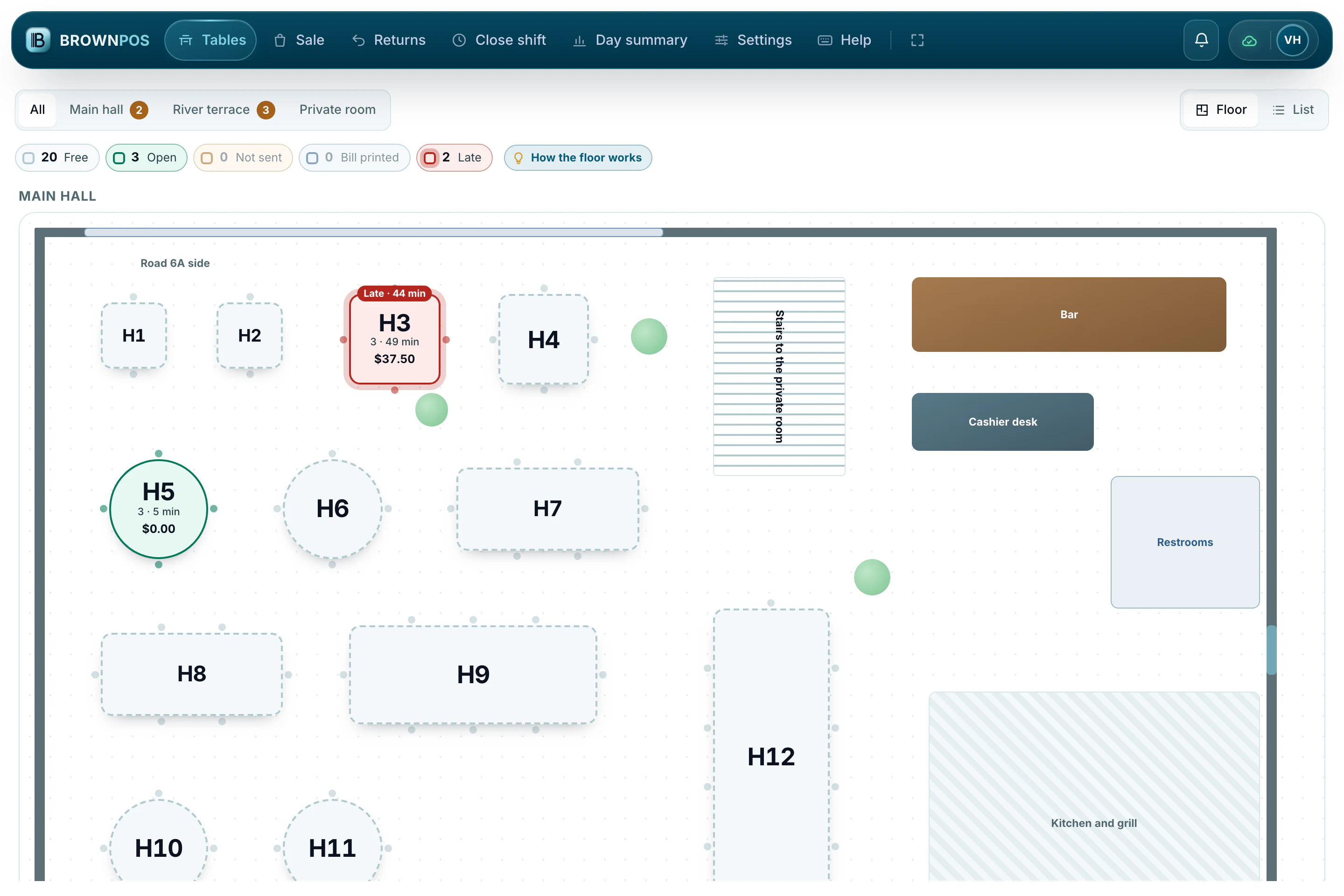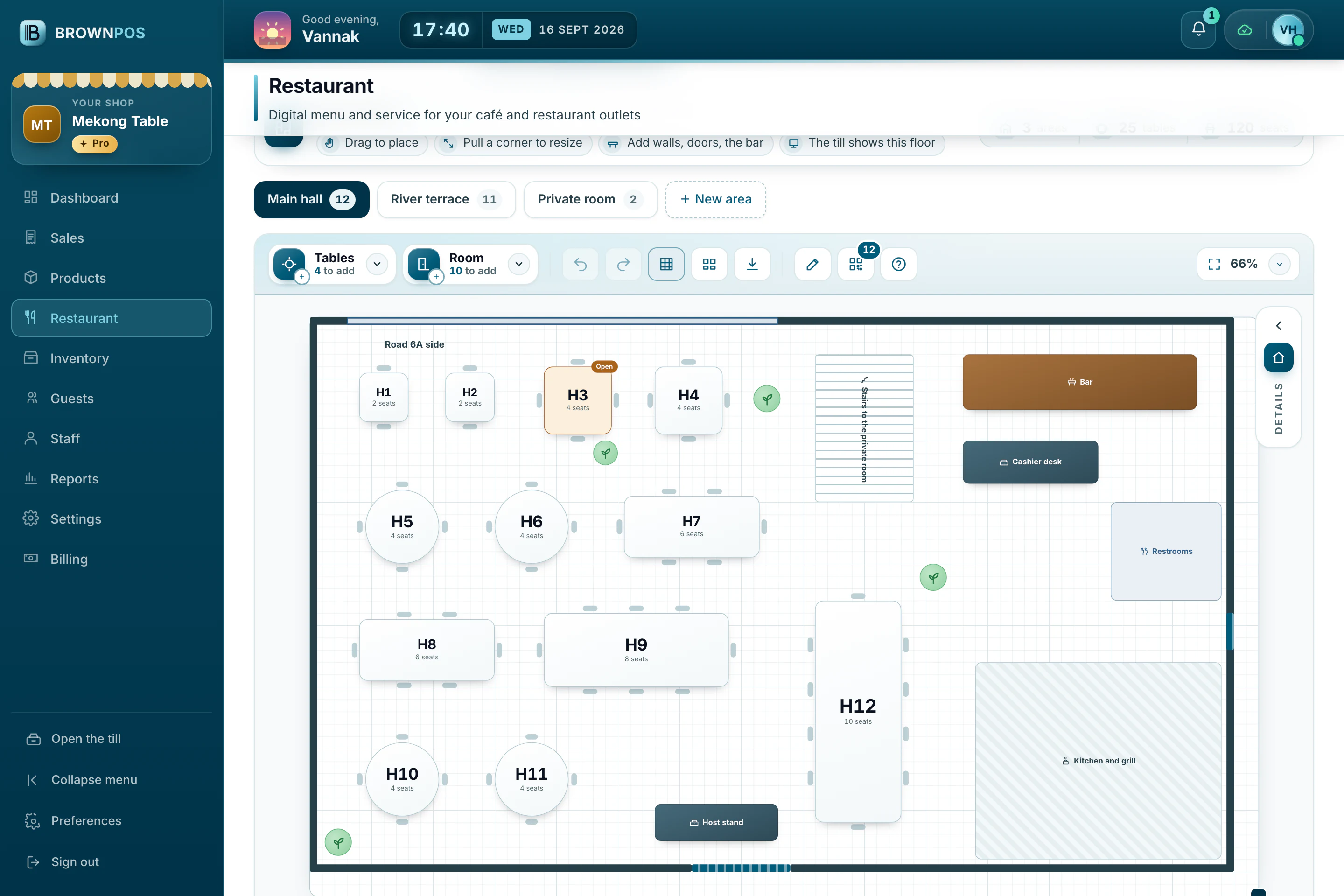
Most points of sale give a restaurant a list of table numbers and leave the rest to memory. BrownPOS gives you a floor plan designer inside the back office instead. You draw each room the way it really is, with its tables, walls, doors, bar and kitchen, and the till’s Tables screen shows exactly that floor to the people taking orders.
We will use Mekong Table, one of our four demo shops, as the example. It has a main hall, a river terrace and a private room. Open Restaurant › Floor Plan in your own back office and follow along.
Step by step
Seven screens, in the order you will use them. Use the arrows or the numbers to move through them.
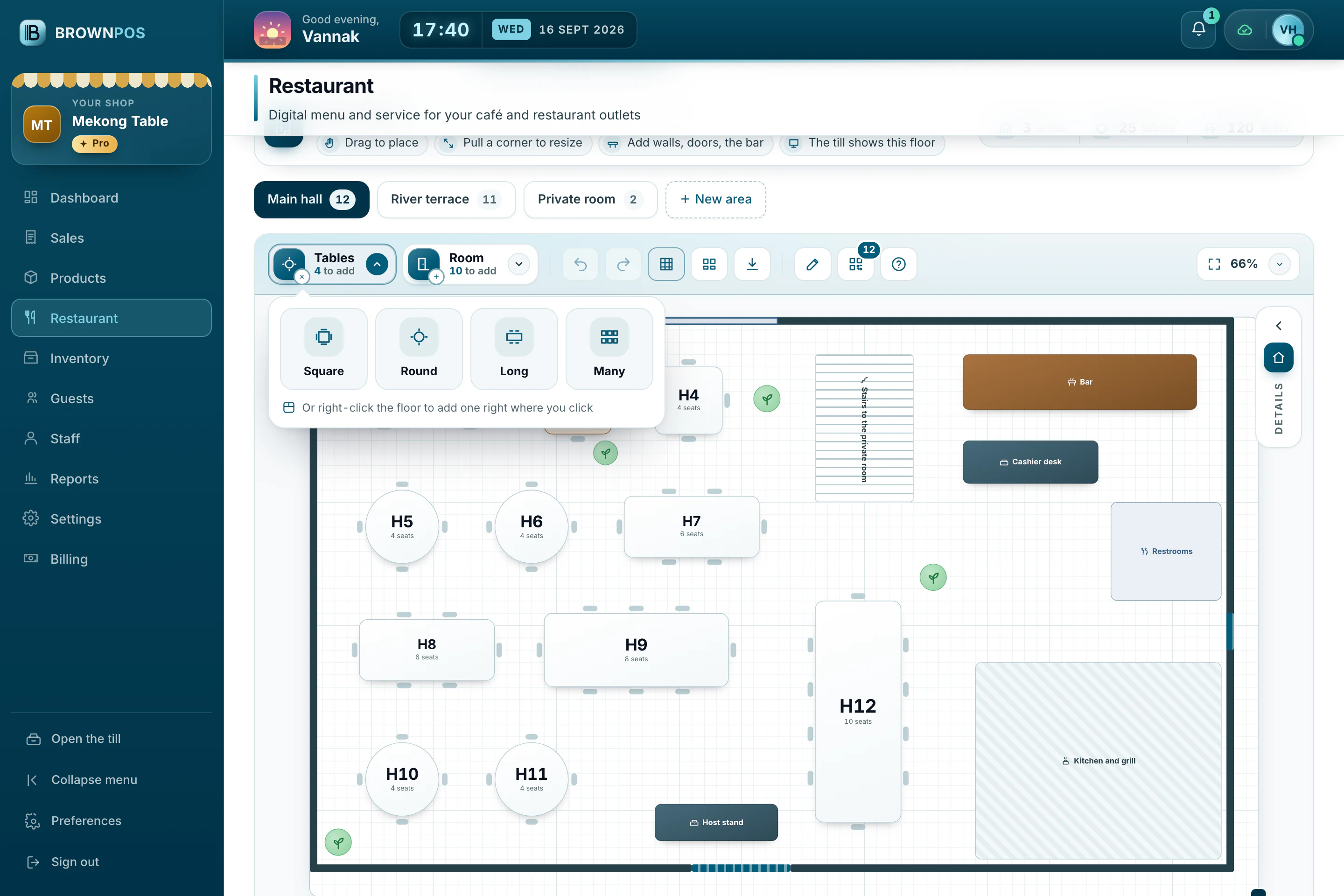
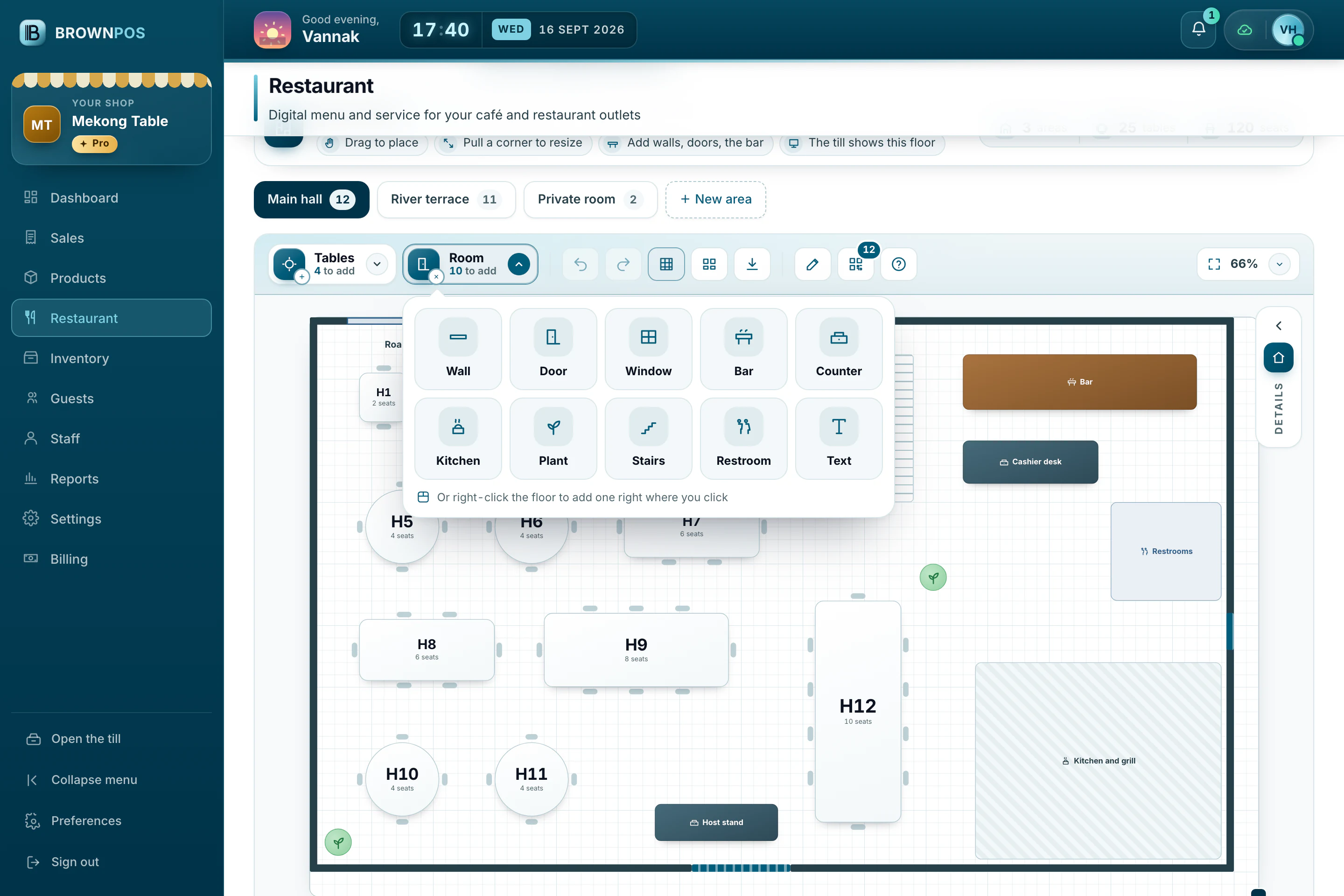
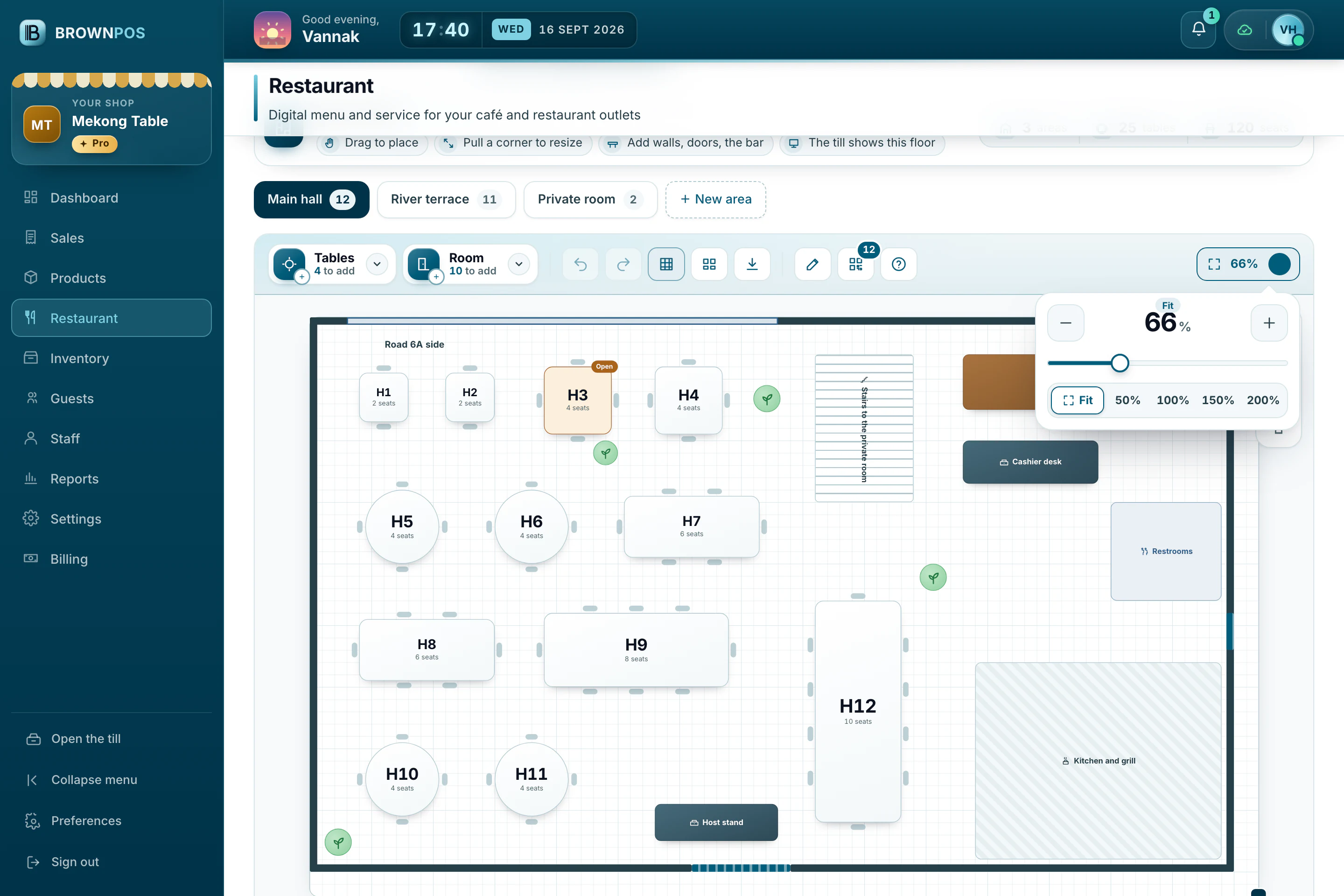
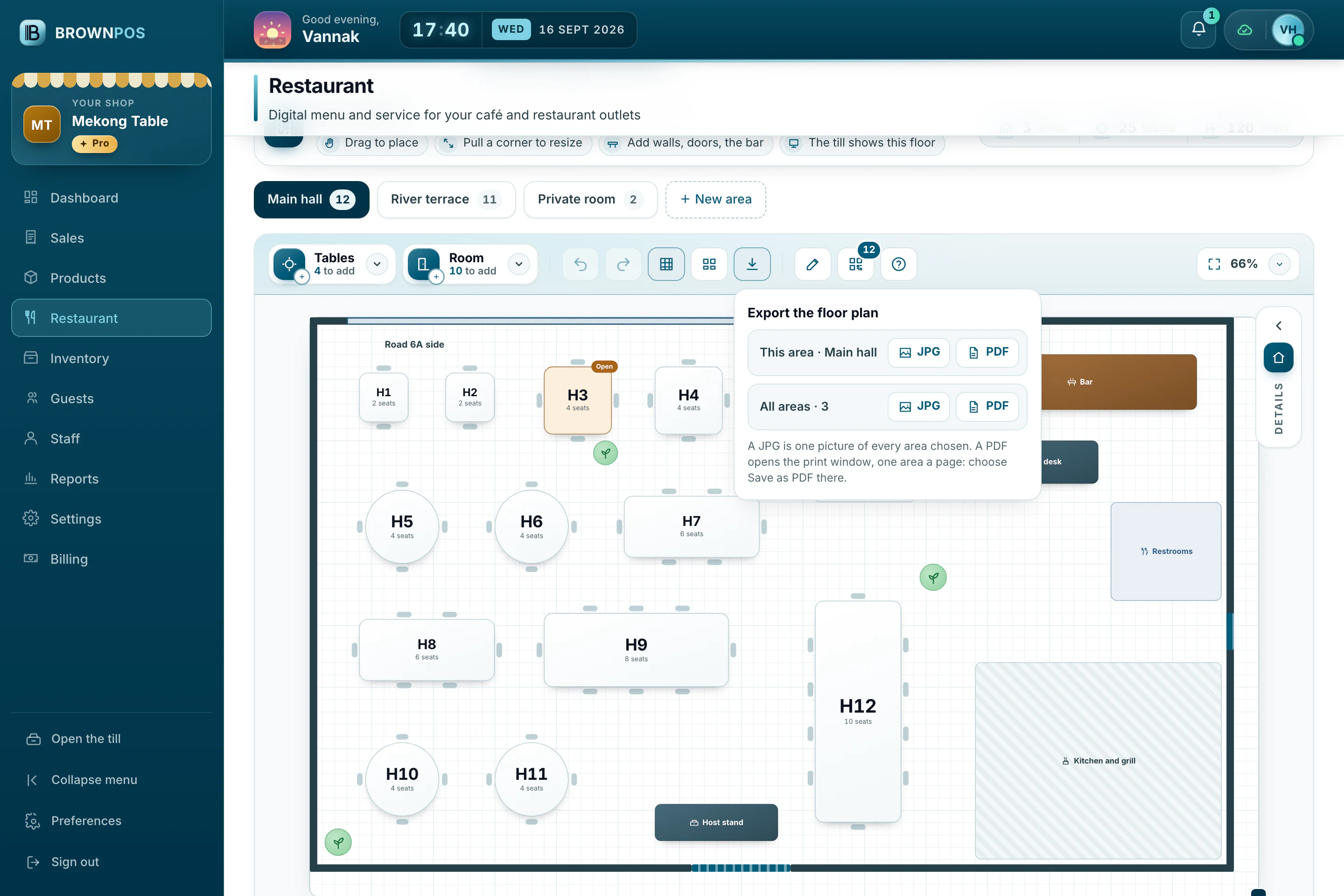
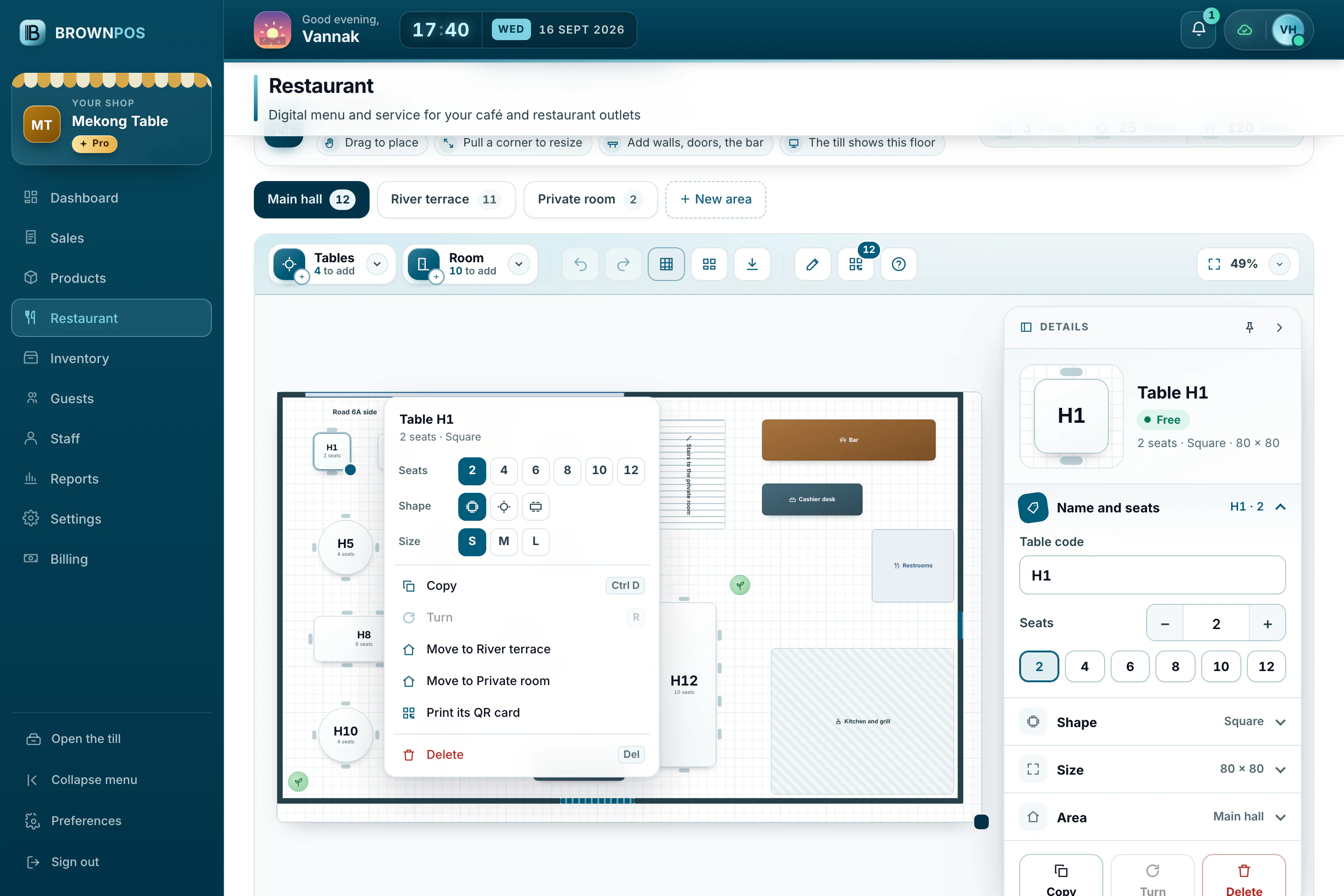
Each area is its own floor, such as Main hall or Terrace. Tables keep their place, size and seats, drawn to scale.
Keys worth learning
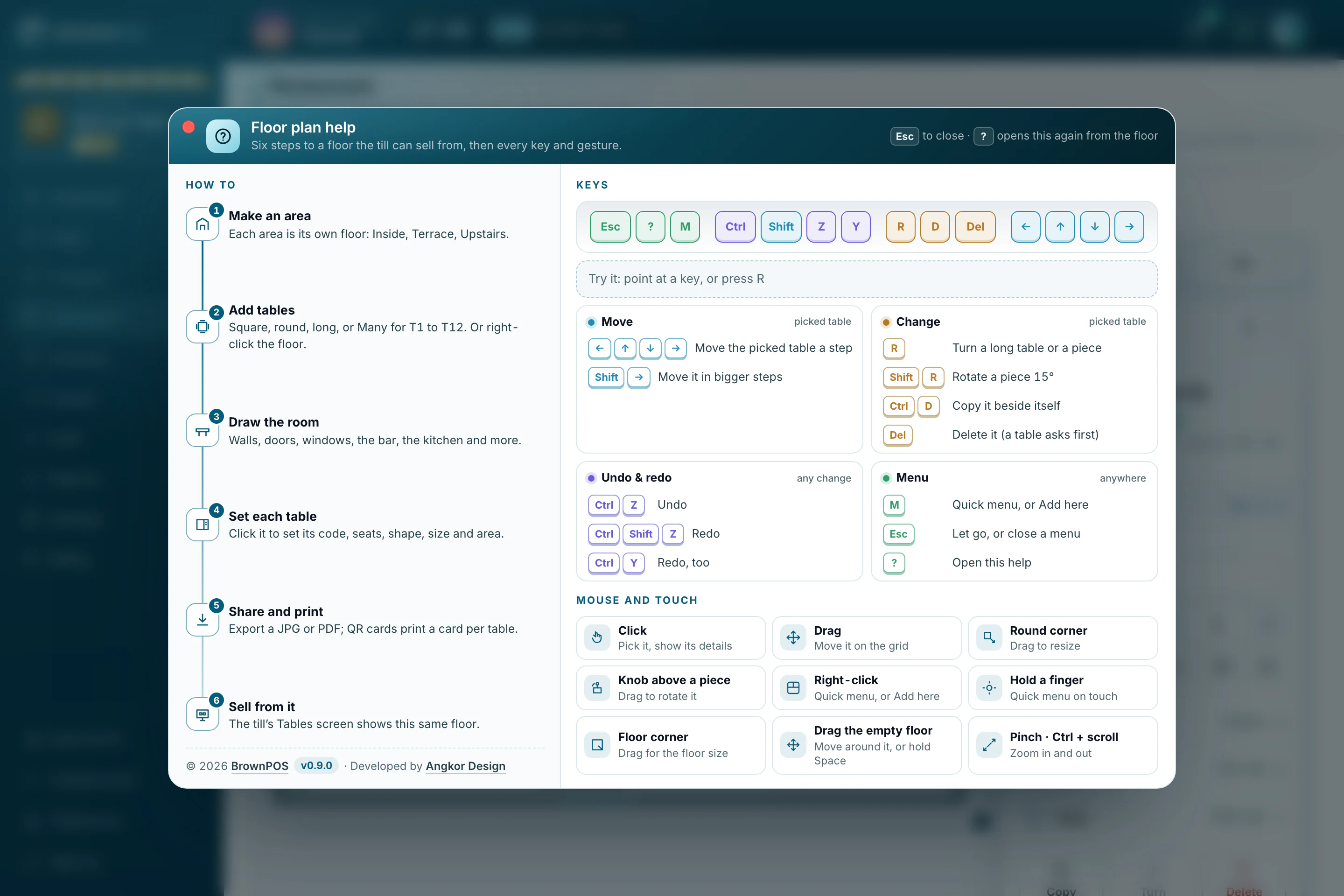
Press M for the quick menu, R to turn a long table or a piece of the room, Ctrl D to copy what you picked, and Delete to remove it (a table asks first). Ctrl Z undoes and Ctrl Shift Z redoes. The arrow keys nudge the picked table a step, and with Shift they move it further. Press ? at any time to open the help.
To move around a big floor, drag the empty floor, or hold Space while you drag.
The same floor on every till
Once the floor is drawn, the till’s Tables screen shows it to your cashiers and waiters, with every table coloured by what is happening: free, open, not sent to the kitchen yet, bill printed, or waiting too long. Right-click a table on a computer, or hold it on a tablet or phone, for its quick menu.