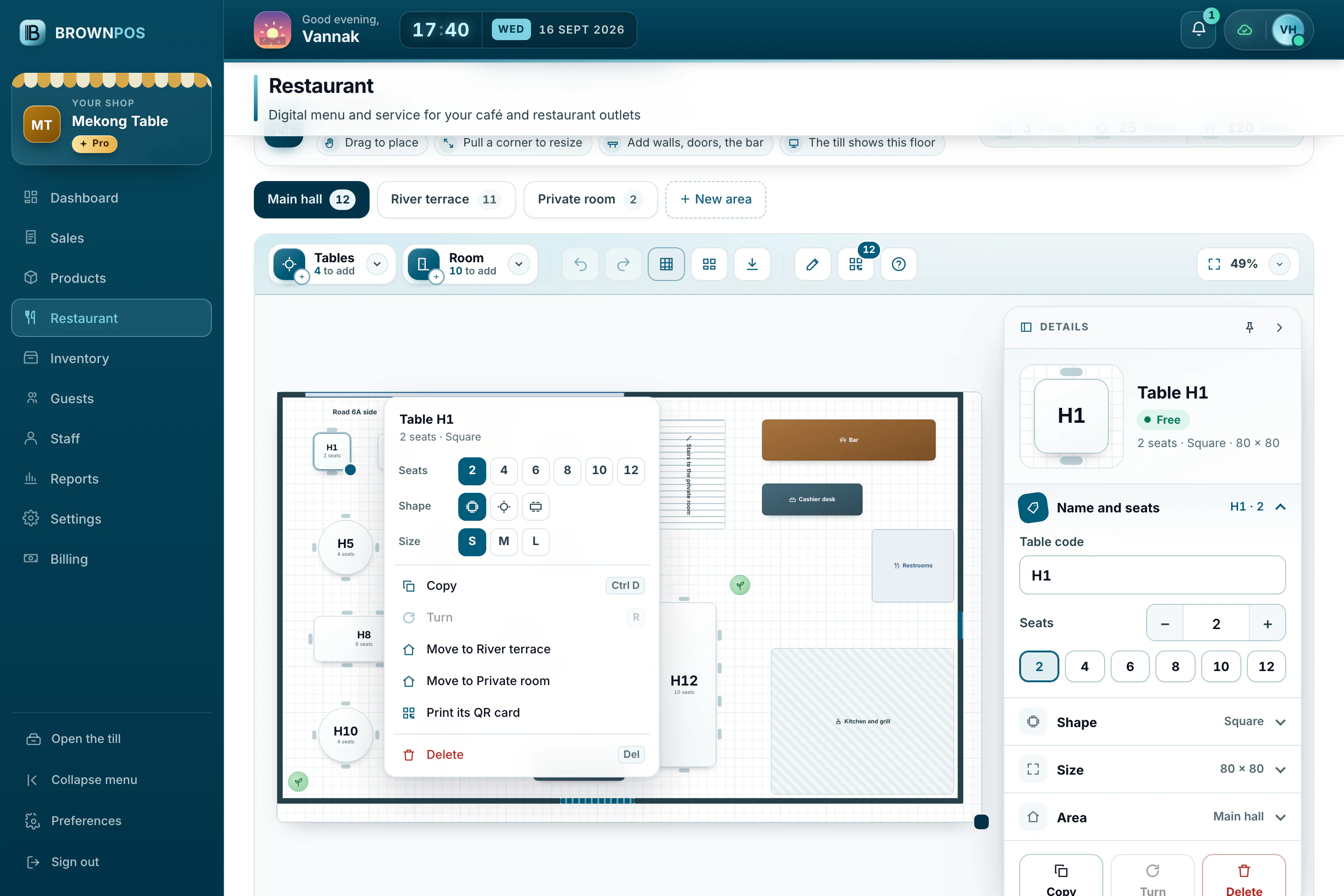
Draw your restaurant’s floor plan
Draw your rooms and tables once in the back office, and every till shows the same floor to your staff.
Draw it
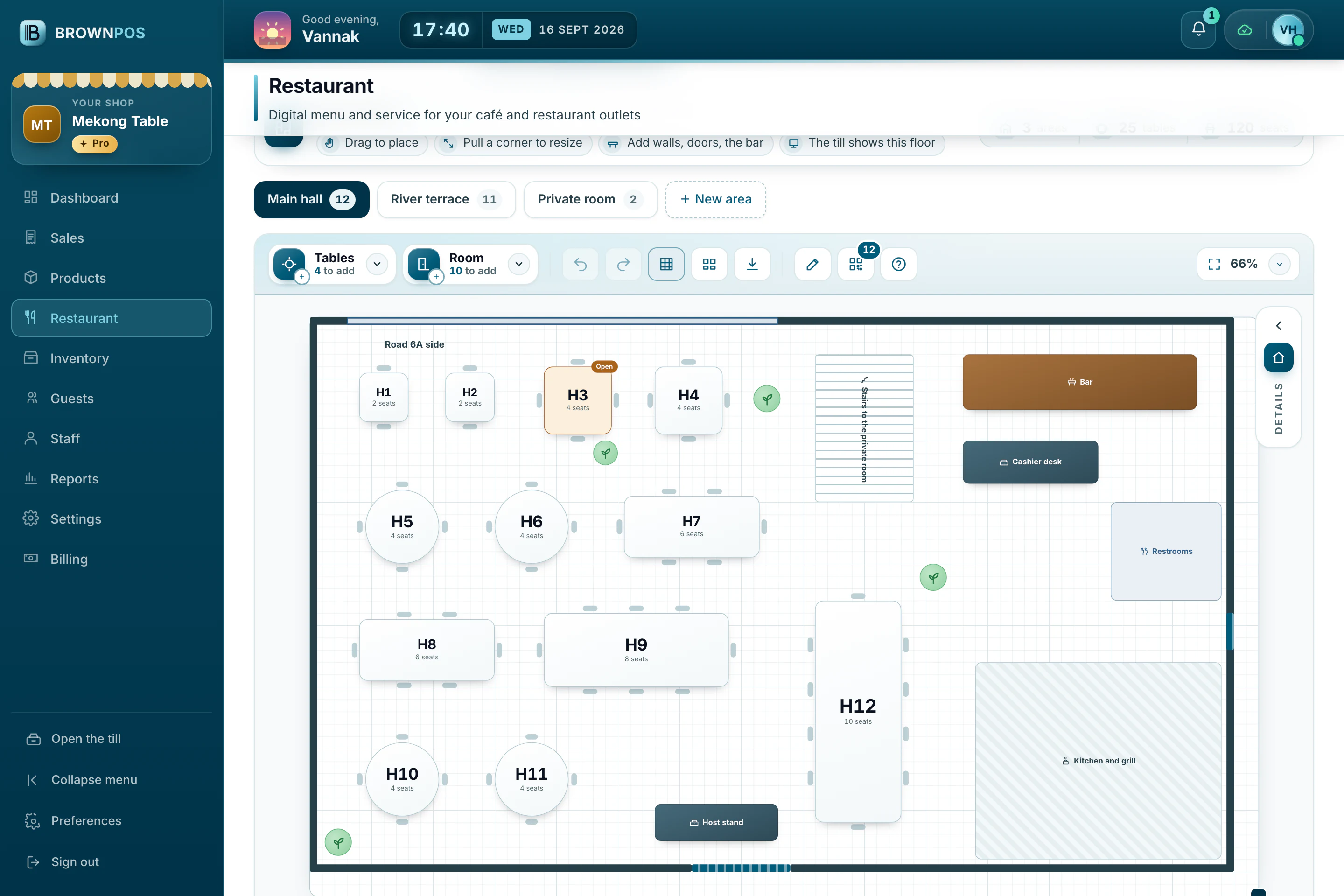
- In the back office, open Restaurant and choose Floor Plan.
- Make an area for each room, such as Main hall or Terrace.
- Open Tables to add square, round or long tables, or right-click the floor to add one exactly where you clicked.
- Open Room for walls, doors, windows, the bar and the kitchen. Drag the round knob above a piece to turn it.
Quick changes
Right-click any table to change its seats, shape or size, copy it, move it to another area or print its QR card.