Put a booking box on your own website
One line of code, or a link and a printed QR, and guests book a table on your site instead of somebody else’s.
Choose your booking address
This is the address guests see, so make it one you would read down a telephone. It goes on your QR codes too.
- In the back office, open Reservations and then Your booking page.
- Press Change beside the address and type a short name — your shop, or your street.
- It tells you while you type whether another shop already has it. Press Use this address.
- Turn on Open for bookings and press Save changes.
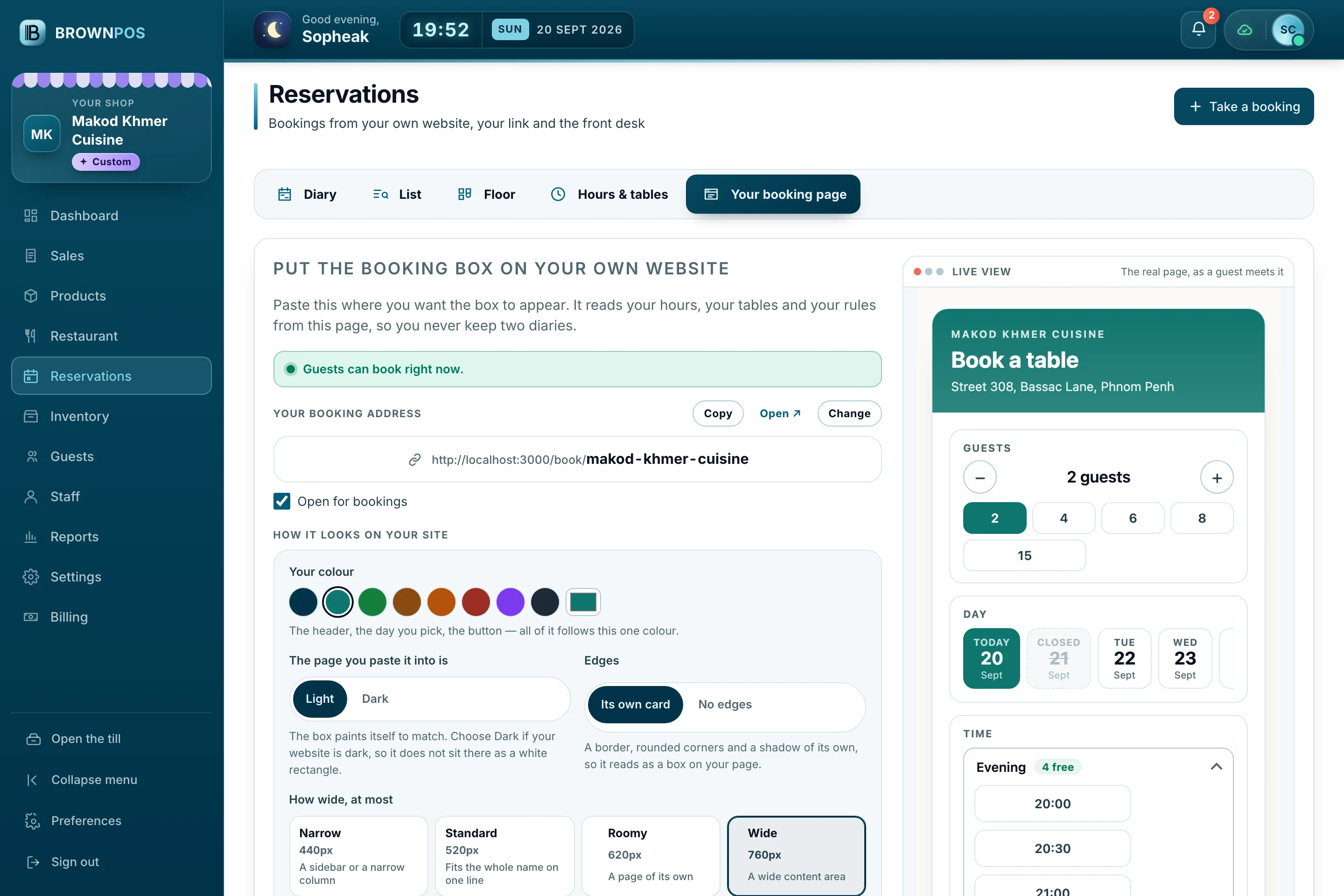
Put it on your website
Paste the embed code where you want the box to appear. It works on WordPress, Wix, Shopify or plain HTML.
- Press Copy under Embed code.
- Paste it into your page where the box should sit.
- If you have no website, use the link or print the QR code instead.
Make it look like your shop
The box takes one colour and mixes everything else out of it, so there is no way to choose a set that does not go together.
- Pick Your colour — the header, the day a guest picks and the button all follow it.
- Choose Light or Dark to suit the page you are pasting it into.
- Choose Its own card or No edges, and how wide the box may grow.